Home Blog Page 7

How to fix Windows Cannot access shared folder without password.

0

Resolution

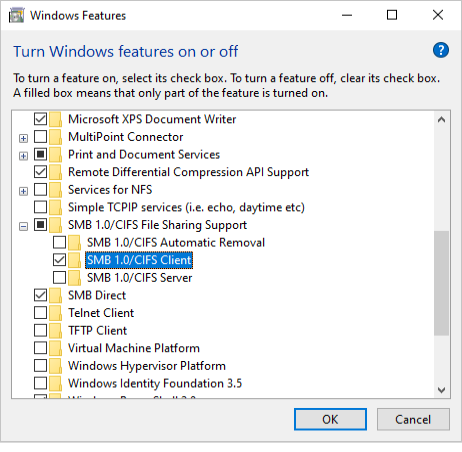
Turn on the SMB 1.0 support feature from Control Panel by following these steps:

  1. Open Control Panel.
  2. Select Programs > Programs and Features > Turn Windows features on or off > SMB 1.0/CIFS File Sharing Support.
  3. Check SMB 1.0/CIFS Client, and then press Enter. Screenshot of the SMB 1.0/CIFS Client feature under the SMB 1.0/CIFS File Sharing Support item in the Windows Features dialog.

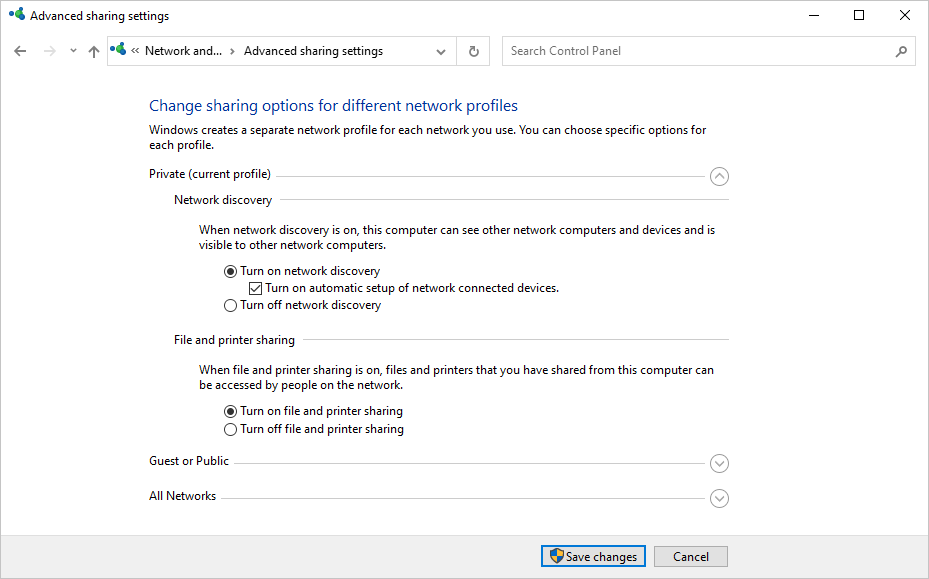
Turn on network discovery and file and printer sharing options by following these steps:

  1. Open Control Panel.
  2. Select Network and Internet > Network and Sharing Center > Advanced sharing settings.
  3. Select Turn on network discovery.
  4. Select Turn on file and printer sharing under Private.
  5. Select Save changes. Screenshot of the Turn on network discovery option and the Turn on file and printer sharing option in Advanced sharing settings.

Set the startup type of specified services to Automatic to make the computer visible on the network. Here’s how to proceed:

  1. Go to Start.
  2. Go to Search, enter the word Services, and press Enter.
  3. Change the Startup type property to Automatic for the following services.
    • Function Discovery Provider Host
    • Function Discovery Resource Publication
    • SSDP Discovery
    • UPnP Device Host
  4. Restart the system.
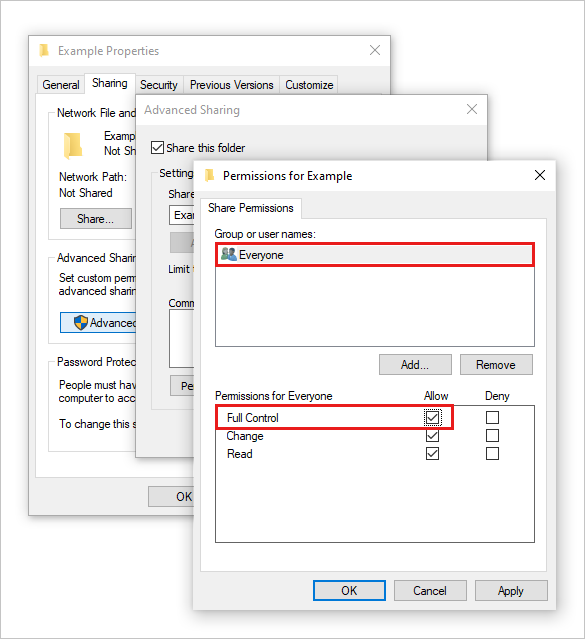
  1. Here’s how to share permission to Everyone for the folder you want to share:
    1. Press and hold (or right-click) the shared folder.
    2. Select Properties, and then select Advanced Sharing on the Sharing tab.
    3. Select Permissions, check Allow for Full Control of Everyone, and then press Enter.
    4. Select OK on the Advanced Sharing dialog box.Screenshot shows the steps to share folder permissions to Everyone.
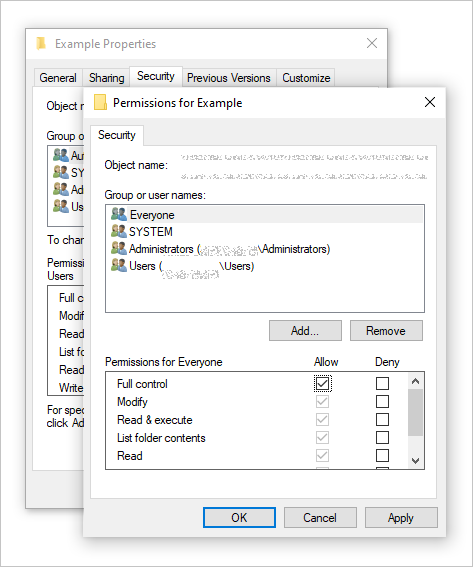
  2. Here’s how to allow the Full Control permission to Everyone:
    1. Select Edit on the Security tab.
    2. Select Add, enter Everyone in the Enter the object names to select field, and then press Enter.
    3. Check Allow for Full control of Everyone, and press Enter.
    4. Close the Properties dialog box.Screenshot shows the steps to allow the Full control permission to Everyone.

Headless Maya Playblast

0

Contrary to popular beliefs, it’s totally possible to do your playblasts in batch mode. It can be very helpful in a lot of workflow: – create a missing playblast without the hassle of opening Maya UI – move all playblasts calculation to a remote computer to be able to continue to work at the same time – update playblasts of all shots at once on a renderfarm to make an up to date montage of the movie All of this is made a lot easier and faster when doing playblasts in batch mode

Both mayabatch and mayapy can do this, the main difference is the background color being different and mayapy being a little finicky.

In a Python module put this simple code:

def do_playblast(output):
    cmds.playblast(f=output, widthHeight=[1980, 1080], percent=100, forceOverwrite=True, viewer=False)

And you can call maya with one of those

# For mayabatch
maya -batch -file "file_to_playblast.ma" -command 'callPython "playblast" "do_playblast" {"output_path.mp4"}' -noAutoloadPlugins
# For mayapy
mayapy -c "import maya.standalone;maya.standalone.initialize(name='python');import playblast;playblast.do_playblast('output_path.mp4')" "filepath_to_playblast.ma"

The Maya file to open is directly in the command but you can also put the opening of the Maya file into the script instead. This way it’s possible to do a batch of several scenes on a single node to save time on the initialization of Maya, but it’s not worth it. If it crashes it’s harder to know what happened and which job was processed or not. By deploying one job per scene you can send it to different computers on the renderfarm and see the general progress.

Another option would be to simply render with a fast software/hardware renderer.

If you encounter problems, as a last resort you could launch a Maya GUI and override the default UI with a very small window. This can be done by creating an empty Maya workspace layout, and then setting the environment variable MAYA_OVERRIDE_UI to a path to this MEL script:

string $jobWindow = `window -mw -title "Playblast" -widthHeight 1 1`;
workspaceLayoutManager -setCurrent "EMPTY"; // EMPTY is the name of my empty workspace
setParent ..;
showWindow $jobWindow;

Taken from:

https://www.regnareb.com/pro/2021/06/headless-playblasts-batches/

IMPROVE MAYA STARTUP AND SHUTDOWN TIMES

0

Since Maya 2016, it launches with a set of at least 3 acwebbrowser.exe process. Besides all the fuss it creates in the task manager and resource hog it can be, it can also slow down Maya startup and shutdown times by more than 200%, up to 30 seconds each time! Those process are some chromium engines that connect to the web for different tasks, especially regarding registration. Quite a useless thing to wait for each time you start Maya if you ask me.
Messing with the install files is a bad idea as it will probably prevent Maya from launching, it’s much more easy to disable that behaviour by setting these simple environment variable MAYA_DISABLE_CLIC_IPM and MAYA_DISABLE_CIP to 1.

If you have no internet connection or if you are in a huge studio with tons of artists using Maya, it will surely make a huge difference!

If you want to improve the shutdown time even more, set the other environment variable MAYA_DISABLE_CER to 1.
Each time Maya quits, it requests a connection to Amazon web services (AWS) for the Autodesk Customer Involvement Program, adding 30 seconds of stupidity in some worst cases.


If you are on Windows, you could also disable the console window that appears for each Maya instance. It’s a good debug tool so keep in mind that you’d may have to reenable it in case you encounter a problem, but I feel it is way more pleasant without that window polluting the workplace. To do that just set the environment variable MAYA_NO_CONSOLE_WINDOW to 1. There is no need for that on Linux or Mac because they have a real terminal.

Regarding the performance of the VP2 viewport with MAYA_DISABLE_VP2_WHEN_POSSIBLE.
————

The viewport 2.0 has some really nice features like motion blur, ambient occlusion, anti aliasing but it’s still not really usable regarding performances and bugs. I have seen a performance loss around 30-40% even with the basic settings and wireframe mode.

But the worst is that even if you change all your viewport to the Legacy one, the performance loss is still very noticeable :

  • only legacy – 100%
  • activate viewport 2 – 70%
  • reuse legacy in all viewports – 87%

Since Maya 2015 the viewport 2.0 is activated by default, so if the user that worked on the scene previously has not changed its default viewport and if you load the UI settings from the scene, you may have some viewport 2.0 instances in the scene, even if your main viewport is in legacy mode.

To make sure you never get some VP2 residue make sure that you deactivate the preferences in UI Elements > Restore saved layouts from file. It won’t use the UI configuration saved by the precedent user working on the scene, and in the mean time speedup the loading and sometimes fix some bugs. Actually I think it’s one of the first thing you should setup in Maya with a custom layout so that your UI is consistent throughout different sessions.

The other way around is to use a script that will query all the different 3d model panels, and set them to the legacy viewport… And reset and free everything regarding the viewport 2.0.

def setAllPanelsToRenderer(renderer, reset=True):
    """Possible values: base_OpenGL_Renderer, hwRender_OpenGL_Renderer, vp2Renderer"""
    modelPanels = cmds.getPanel(type='modelPanel')
    for panel in modelPanels:
        cmds.modelEditor(panel, edit=True, rendererName=renderer)
    if reset or os.environ.get('MAYA_DISABLE_VP2_WHEN_POSSIBLE', False):
        cmds.ogs(reset=True)

You may have noticed the MAYA_DISABLE_VP2_WHEN_POSSIBLE environment variable, it is used when switching viewport engines to tell Maya to free everything related to the viewport 2.0 if it is not used in any viewport anymore. I think it’s always a good thing to set it.

FAKE SSS for 3DS MAX Viewport

0
https://vimeo.com/41147048

Code over here:

http://www.aardolino.com/blog/

or

Playing Remedy’s Alan Wake for Xbox, and feeling lost seeing its marvelous forest environment, wondering about how to procedurally animate trees and vegetation using vertex colors, the idea of SS&F-SSS came out: use mesh thickness to modulate a SSS color. [Yes…it’s not related to trees and vegetations actually]
I’m confident that this approach was discovered a lot of time ago, but I implemented it as coding exercise.
As first step I developed a maxscript function to evaluate the mesh thickness; the function casts a ray for every vertex normal (inverting their direction) and store the collision distance in the vertex’s color. After that some tuning is needed to get better results; this tune is usually a couple of blur passes.
This is the maxscript code to find the mesh thickness:

--convert a value to 0-255 range
fn UT_to255 _min _max n =
(
    local result = ((n + (-1*_min))/float(_max))*255
    return int(ceil(result))
)
 
--cast a ray for every mesh vertex and store the ray distance in the vertex color
--NOTE: a vertex color tune is needed!! use the vertexPaint modifier
fn aa_bakeMeshThickness theMesh =
(
    local rm = RayMeshGridIntersect()
    rm.Initialize 10 --init. the voxel grid size to 10x10x10
    rm.addNode theMesh
    rm.buildGrid() --build the grid data (collecting faces into the grid voxels)
    local theGSMesh = snapshotasmesh theMesh
 
    local theColorArray = #()
 
    for v = 1 to theGSMesh.numverts do --go through all verts of the Geosphere
    (
        local thePos = getVert theGSMesh v --get the position of the vertex
        local theNormal = -(getNormal theGSMesh v) --get the normal of the vertex, reverse direction
        local theHitsCount = rm.intersectRay thePos theNormal true --intersect the ray with the sphere
        if theHitsCount > 0 then --if have hit anything...
        (
            local theIndex = rm.getClosestHit() --get the index of the closest hit by the ray
            local theFace = rm.getHitFace theIndex --get the face index corresponding to that indexed hit
            --append theFacesArray theFace --add to the face array to select the face...
 
            --find the distance from the current verte to the hit point
            local theFaceID = rm.getHitFace theIndex
            local theFaceCenter = meshop.getFaceCenter $ theFaceID
 
            local theDist = distance theFaceCenter thePos
 
            append theColorArray theDist
            --print theDist
        )
        else
            format "The Ray % Missed\n" v
    )
 
    --assign the vertex colors
    local vMin = amin theColorArray
    local vMax = amax theColorArray
    for v = 1 to theGSMesh.numverts do --go through all verts of the Geosphere
    (
        local vColor = 255 - (UT_to255 vMin vMax theColorArray[v])
        --print vColor
        meshop.setVertColor theMesh 0 v ((color vColor vColor vColor))
    )
 
    --vertex color tuning
    local vPaint = VertexPaint()
    addModifier theMesh vPaint
)
 
--run
global curMesh = $
if(classof curMesh != Editable_mesh) then convertToMesh curMesh
aa_bakeMeshThickness curMesh
 
curMesh.showVertexColors = on
curMesh.vertexColorsShaded = off
curMesh.vertexColorType = 0

And the HLSL code to use this information is:

float4 sssColor = float4(0,0,0,0);
if(g_sssEnable)
{
    float sssInterpolation = pow(max(dot(-IN.eyeVector, IN.LightVec.xyz), 0), 2);
    sssColor = lerp(float4(0,0,0,1), g_SSSColor, sssInterpolation) * float4(IN.vertColor, 1) * g_sssMultiplier;
}

Finally I simply add the sssColor to the output pixel.

dinamically load .net assemblies in 3dsMax

April 10, 2012

During intensive 3dsMax+C# development, a really annoyng issue is the blocking loading of .dll assemblies performed by 3dsMax.
The technique by Denis Trofimov solves the issue:

assemblyPath = @"\\aardolino\aa_imageMosaic.dll"
assembly = (dotnetclass "System.Reflection.Assembly").Load ((dotnetclass "System.IO.File").ReadAllBytes assemblyPath)
imgMosaic = dotNetObject  "aa_imageMosaic_namespace.aa_imageMosaic_class"
imgMos.showForm()

More information here: http://forums.cgsociety.org/showpost.php?p=6864094&postcount=480

Interactive voxel based joinery for wood working and CNC

0

Amazing tool to use voxels as aid to design joinery.

CNC MACHINERY GUIDES

https://github.com/marialarsson/tsugite/wiki/Fabrication-Manual

https://github.com/marialarsson/tsugite

GPU Rendering and H264 H265 HEVC and PRORES for Free on After Effects, Premiere and NLE editors VOUKODER

0

Found this great free tool that allows you to render H264 H265 PRORES, etc… directly from After Effects newer versions, Premiere, Davinci, Vegas pro.

https://www.voukoder.org/forum/thread/783-downloads-instructions/

CARPE (Tracking Gaze while watching films)

0

A very interesting project that tracks your gaze while watching films, a great way to assess the sight’s location and if it corresponds to the intended point the DP or the Layout Artist defined as a focal point.

More info here:

THE DIEM PROJECT

http://continuityboy.blogspot.com/2011/10/smooth-pursuit-on-bbc-breakfast.html